|
Q: |
Do I need to use a Font
Cartridge, SIMM, DIMM, or other font device to print checks? |
|
A: |
You may or may
not need a font device to print checks, depending on the software you are using for check
printing. If your software tells you to use pre-printed check
stock (which is already encoded with the magnetic numbers) you
do not need the special font. There are also some applications
programs that include the font in the software which is downloaded
to the printer as needed. However, for security reasons, many
programs require a font cartridge, SIMM or DIMM to be present
in the printer in order to print checks. In some cases, the cartridge/SIMM/DIMM
contains a signature or logo to be printed on the document. |
|
|
Back to Top |
|
|
x |
|
Q: |
How do I know what type
of font device to get for my HP printer? |
|
A: |
Most Hewlett
Packard printers through the LaserJet 4+ use one or more font
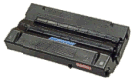
cartridges (these have
a rectangular slot about 3.5 x 1 inches) while newer models like
the LaserJet 5 and 6 family support SIMM fonts (and don't have
a slot). Some models support both cartridge and SIMMs. Some models,
like the LaserJet 4L, 5L and 6L, do not support either cartridge
or SIMM. LaserJet 2100, 4000, 4050, 5000, 8000 and 8100 models
use a DIMM instead of a SIMM or cartridge. The Secure Font System
font device can be used with all models of LaserJet printers
that have a parallel port. If you have an HP printer and are
unsure what type of font product it uses, refer to our Compatibility Table. |
|
|
Back to Top |
|
|
|
|
Q: |
How do I install a Font
Cartridge in my printer? |
|
A: |
To install a
font cartridge in the printer, follow your printer's specific
instructions. The following
general procedures apply: |
|
|
We recommend
you power off the printer before inserting the cartridge (see
#3 below), then power on. |
|
|
Alternatively, you may do the
following steps without turning off the printer:
1. Take the printer off-line by pressing
the [ON-LINE] key located on the printer control panel. (The
ON-LINE indicator light should be off.)
2. Make sure the FORM FEED indicator is off. If
it is on, after the printer has stopped receiving data, press
the [FORM FEED] key to print the remaining data.
3. Insert the cartridge into the printers
font cartridge slot and push until the cartridge is firmly seated.
You should hear and feel the cartridge snap into place. In printers
that have more than one slot the cartridge may be installed in
any slot.
NOTE: microMICR makes different format font
cartridges, and the label may be on top or the bottom. On some
printers, the cartridge may be appear to install correctly, but
actually be inverted. If the cartridge seems not to work, follow
the procedure below for removing it, then turn it over and reinstall.
4. Return the printer ON-LINE by pressing
the [ON-LINE] key. (The indicator light should be on.) Test the
cartridge.
|
|
|
Back to Top |
|
|
|
|
Q: |
How do I install a Font
SIMM in my printer? |
|
A: |
The microMICR
SIMM (Single Inline Memory Module) Font Device installs in any of the following Hewlett Packard
LaserJet printer models and their variants: LaserJet 3Si, 4Si,
4, 4plus, 4V, 4P, 5, 5P, 5Si, and 6P. Note that the SIMM is not
compatible with LaserJet models 4L, 5L and 6L, nor with
the newer models that use DIMM memory. |
|
|
Install the Font SIMM Board in any
of the SIMM slots located inside the LaserJet printer in the
same manner as a memory SIMM board. For installation instructions,
refer to the section on memory SIMM Board Installation found
in the Users Manual for your specific printer model. The
following general procedures apply: |
|
|
CAUTION: Static electricity can damage SIMMs.
When handling SIMMs, either wear an anti-static wrist strap or
frequently touch the surface of the SIMM's anti-static package,
then touch bare metal on the printer. |
|
|
1. Turn the printer off. Unplug the power cord
and disconnect any cables.
2. Open the SIMM access door. The board may be installed
in any available SIMM slot. We recommend that any permanent memory
SIMMs be installed in the rightmost or lowest slots and the Font
SIMM be installed in the next vacant slot.
3. When you remove the SIMM from the anti-static
package, hold it by the side and back edges only, with the metal
teeth facing the slot, positioning notch down (or right). The
notch prevents the SIMM from being installed backwards.
4. In printer models where the SIMM slots are vertical,
as in the LaserJet 4 and 4plus, position the SIMM with the metal
teeth facing the slot so that the notch on one end of the board
is on the bottom. The components will be on the right side of
the board.
5. In printer models where the SIMM slots are horizontal,
such as the LaserJet 4P, position the SIMM with the teeth facing
the slot and the notch on the left side. The components will
be on the bottom of the board. Note: in some printer models (like
the 4P), the SIMM will only fit in the middle or top slot due
to its size. It may be necessary to relocate an existing SIMM.
6. Hold the board at a 30 degree angle and firmly
push it with your thumbs into the slot. Push the board into the
back of the slot to evenly seat it.
7. Rotate the board straight toward a 90 degree
angle until the clips on the edges of the slot snap into place
(you will feel and hear a "click").
8. Close the SIMM access door.
9. Re-attach any interface cables and the power
cord, then turn the printer on and test the SIMM.
|
|
|
NOTE: Always power off the
printer whenever installing or removing the Font SIMM. |
|
|
Back to Top |
|
|
|
|
Q: |
How do I install a Font
DIMM in my printer? |
|
A: |
Follow the instructions
provided in your printers documentation for installing
DIMM memory options.
They will describe where to locate and how to access the DIMM
slots for your model. The following steps apply to the LaserJet
4000. Directions for other models may differ. |
|
|
CAUTION: Static electricity can damage DIMMs.
When handling DIMMs, either wear an anti-static wrist strap or
frequently touch the surface of the DIMM's anti-static package,
then touch bare metal on the printer. |
|
|
1. Turn the printer off. Unplug the power cord and
disconnect any cables.
2. Grasp the cover and pull it firmly toward the
rear of the printer until it stops.
3. Remove the cover from the printer.
4. Loosen the captive screw holding the DIMM access
door with a Phillips #2 screwdriver. Open the door.
5. Remove the DIMM from the anti-static package.
Hold the DIMM with fingers against the side edges and thumbs
against the back edge. Align the notches on the DIMM with the
DIMM slot (check that the locks on each side of the DIMM slot
are open, or outward).
6. Press the DIMM straight into the slot (press
firmly). Make sure the locks on each side of the DIMM snap inward
into place (to remove a DIMM, the locks must be released).
7. Close the DIMM access door and tighten the screw.
8. Set the bottom of the cover onto the printer.
Make sure the bottom tabs on the cover fit into the corresponding
slots in the printer. Rotate the cover up towards the printer.
9. Slide the cover toward the front of the printer
until it clicks into place. Re-attach any interface cables and
the power cord, then turn the printer on and test the DIMM.
|
|
|
Always power off the printer
whenever installing or removing the Font DIMM. |
|
|
Back to
Top |
|
|
|
|
Q: |
How do I install the ValuePort
Font Device? |
|
A: |
To Install the
ValuePort: |
|
|
1. Power off the printer.
2. Connect the ValuePort into the printers
Centronics parallel port. If your computer or network is connected
to that port, remove the cable and plug it into the connector
on the back of the ValuePort (with the clips). If your printer
has the new style mini-parallel port, you will need an adapter
for the ValuePort.
3. When you power on the printer the ValuePort will
automatically download its resources.
|
|
|
Note: If the printer is reset, the ValuePort resources
are deleted. You may re-load these by pressing the black button
on the Versa-Port while the printer is on. |
|
|
Always power off the printer
whenever installing or removing the ValuePort. |
|
|
Back to Top |
|
|
|
|
Q: |
How do I install the ValuePort
in a LJ 2100 or 2200 Printer? |
|
A: |
Some LaserJet
printer models (like the 2100 and 2200) have recessed or hidden
access to the parallel
port which hinders attachment of the cable to the ValuePort.
To solve this problem you need to use a parallel cable extender.
Part # FXC-120 is a 12 inch cable extender which can be ordered
from microMICR Corporation. |
|
|
Back to Top |
|
|
|
|
Q: |
How do I install the Secure
Font System Font Device? |
|
A: |
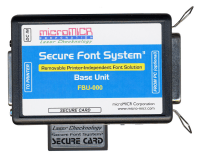
To Install the
Secure Font System (Base Unit): |
|
|
1. Power off the printer.
2. Plug the 9 volt DC power adapter into a standard
120 volt AC outlet and plug the other end into the auxiliary
power jack on the base unit. The LED should start flashing amber.
3. Find the parallel port on your printer. If it
is the standard (large) Centronics parallel port, use the supplied
IEEE-1284 compliant standard cable to connect the base unit to
the printer.
If your printer has the new style mini-parallel port, use the
supplied IEEE-1284 compliant mini-parallel cable to connect the
base unit to the printer.
4. If your computer is connected to the printer's
parallel port, remove that cable from the printer and plug it
into the connector on the base unit (with the clips). If your
printer has the new style mini-parallel port, you can use the
supplied standard cable to connect the computer to the base unit.
5. Power on the printer. After a few seconds the
LED on the base unit will change to steady green.
|
|
|
Note: If the printer is reset, the Secure Font System
resources are deleted. You may re-load these by pressing the
black button on the Base Unit two times while the printer is
on. |
|
|
Always power off the printer
whenever installing or removing the SFS Base Unit. |
|
|
Back to Top |
|
|
|
|
Q: |
How do I install the Secure
Card? |
|
A: |
To Install the
Secure Card, simply insert it into the slot in the Base Unit. The Secure Font System Base Unit should
already be installed as described above and the printer should
be on. The Secure Card only fits one way into the slot, and when
fully inserted, should extend outside by about 5/8 inch (1.2
cm). It may take several seconds for the fonts, signatures, logos
to load into the printer. |
|
|
1. Power off the printer.
2. Plug the 9 volt DC power adapter into a standard
120 volt AC outlet and plug the other end into the auxiliary
power jack on the base unit. The LED should start flashing amber.
3. Find the parallel port on your printer. If it
is the standard (large) Centronics parallel port, use the supplied
IEEE-1284 compliant standard cable to connect the base unit to
the printer.
If your printer has the new style mini-parallel port, use the
supplied IEEE-1284 compliant mini-parallel cable to connect the
base unit to the printer.
4. If your computer is connected to the printer's
parallel port, remove that cable from the printer and plug it
into the connector on the base unit (with the clips). If your
printer has the new style mini-parallel port, you can use the
supplied standard cable to connect the computer to the base unit.
5. Power on the printer. After a few seconds the
LED on the base unit will change to steady green.
|
|
|
Note: If the printer is reset, the Secure Font System
resources are deleted. You may re-load these by pressing the
black button on the Base Unit two times while the printer is
on. |
|
|
Back to Top |
|
|
|
|
Q: |
How do I know if the Font
Device is working? |
|
A: |
After installing
the Font Device you should test that it is properly installed
by printing a Font List.
Some LaserJet printers call this a PCL Font List or a PCL Typeface
List. The procedure for doing this varies with the printer model,
and is usually done using the buttons on the printer panel. Refer
to your printers documentation for specific instructions. |
|
|
The Font List will display samples
of all the typefaces available to the printer in a format that
varies with the printer model. Only a few representative characters
from each typeface are printed. It is a multi-page printout listing
each of the fonts within categories. The order of the categories
is normally the same in all printers but the descriptive headings
for them may be worded differently and will be limited to the
types of font devices compatible with the specific model. |
|
|
The order is PCL Permanent Soft
Fonts, Cartridge Fonts, ROM SIMM M#, ROM DIMM Slot #, and lastly,
Internal Fonts, which are the fonts "built-in" to the
printer. |
|
|
If the Device Fonts are not printed,
turn off the printer and follow the instruction to remove and
reinstall the Font Device. Then turn on the printer and try the
test again. |
|
|
Plug in the printer and switch it
on. The READY message should appear on the display. Follow the
instructions in the printer Users Manual to print a FONT
TEST or PCL TYPEFACE LIST, depending on the particular model.
The printout will list samples of all cartridge and SIMM fonts
under the appropriate heading. For example, the LaserJet III
Font list will identify either LEFT or RIGHT FONT CARTRIDGE.
The LaserJet 4 will list all CARTRIDGE FONTS and ROM SIMMs by
slot number. These lists will also print all the printer's internal
fonts and may run several pages. |
|
|
You can also try running your
application software to print checks. |
|
|
Back to Top |
|
|
|
|
Q: |
Will my Font Device ever
wear out? |
|
A: |
Each microMICR
Font Device is tested for quality control purposes before shipping and the test sheet is enclosed in the
box. The test sheet also contains information about each font
such as the PCL escape sequence used to select it. |
|
|
It is unlikely that the font device
would ever wear out during normal use. However, since it is an
electronic component, it is sensitive to electrical and physical
damage. |
|
|
SIMMs and DIMMs are exposed electronic
circuit boards which are sensitive to electrostatic discharge
and must be handled carefully to avoid damaging the components.
Always wear a grounded anti-static wrist strap or frequently
touch bare grounded metal before handling the device. |
|
|
After installation, SIMMs and DIMMs
are intended to remain in the printer, but if it becomes necessary
to remove the device, handle it carefully and replace it in the
anti-static Mylar bag. |
|
|
When installing or removing microMICR
Font Devices, other than font cartridges, the printer must be
powered off. |
|
|
Should the microMICR Font Device
ever fail due normal use, contact microMICR customer service
for instructions on how to obtain a replacement. |
|
|
Back to Top |